- Introduction
- Step 1: Complete and close the last pay period in 2025
- Step 2: Back up your data
- Step 3: Install the Easypay January 2026 Update
- Step 4: Update Verification
- Step 5: Employer-offered dental benefits code
- Step 6: Set up Year-end Mapping (if required)
- Step 7: Yearly menu: select
- Step 8: Close Year
- TD1 Update Utility – only applies if not running Close Year step
- Electronic Filing of T4, T4A and RL-1 Slips
- Easystub online T4 slips
- Internet Access and Messages from Easypay
Introduction
Before you install the 2026 update, complete and close the last pay period in 2025. If you use Quick Cheque, close it as well.
Please read this entire document before proceeding.
The Easypay January 2026 software update includes the changes required for the 2025 year-end process and the 2026 tax table updates.
After you have completed steps 1 and 2 of these instructions, you will be ready to download and install the January 2026 Update from the Easypay website.
Here is a summary of the steps for closing the 2025 payroll year in Easypay (each step is discussed in detail below):
- Complete and close the last pay period in 2025, but do not run Close Year. ***
- Back up your data. ***
- Install the Easypay January 2026 Update.
- Verify that the Update has been installed successfully.
- Check the Employer-offered dental benefits codes. ***
- Set up year-end mapping (if required). ***
- Print the . ***
- Run the Close Year step. ***
*** Complete steps 1, 2, 5, 6, 7, 8 for each company that is set up in Easypay.
Step 1: Complete and close the last pay period in 2025
Complete and close the last pay period in 2025 before installing the 2026 update, but do not run Close Year. This means closing the last regular pay period in 2025. If you use the Quick Cheque feature, make sure that it has been closed as well.
Note: The CRA specifies that the cheque or direct deposit payment date (the day that employees actually receive their pay) determines the year in which the earnings should be recorded. For example, a cheque issued on January 2, 2026 should be pay period 01 of 2026, even though most or all of the days worked for that pay period were in December 2025.
Step 2: Back up your data
Important! Make at least two backup copies of your company data.
We suggest running twice, as follows:
- Run Backup once to a flash drive or other removable media. For example, if your flash drive is
F, set Backup Disk toF: - Run the Backup step again to back up to your local hard drive or server. For example: set Backup Disk to
C:\YE2025
Please store your removable backup media in a safe location off-site!
Step 3: Install the Easypay January 2026 Update
Please follow the installation instructions posted on the January 2026 Update download page on the Easypay website.
Step 4: Update Verification
To verify that you have installed your 2026 update correctly, go into Easypay Payroll the way you always do and stop at the first window displayed, which is called Company Folders.
You should see a small box in the upper right corner that says: Tax tables: 2026A. If your tables do not say 2026A, or you do not see the small box, then try installing your update again – this time watch closely to see if you receive any error messages.
Step 5: Employer-offered dental benefits code
Please check if you have entered Employer-offered dental benefits codes for each employee in . This code will be copied to the T4 and T4A slips as they are created during the Close Year step.
Before you close the year, the appropriate code must be entered for each employee that will receive a T4 or T4A. Tip! You can quickly enter dental benefits codes by selecting from the menu. This allows you to quickly assign codes to specific groups of employees.
Step 6: Set up Year-end Mapping (if required)
From the main menu, select Yearly. The first option is called Mapping, which most employers will not need to use. The mapping step, if required, must be done after the update has been installed and before closing the payroll year; it will have no effect after the payroll year is closed.
Taxable benefits which normally go to box 40 (“Other Taxable allowances and benefits”) should NOT be mapped. Easypay will automatically add taxable benefits to box 40 and box 14 on the T4 (box A and L on the Quebec RL-1). Some very specialized earnings, benefits or deductions that should appear in the “Other information” section on the T4, need to be mapped. Examples of Other Information boxes include: (42) Employment commissions, (44) Union dues, etc.
The mapping step is also used to flag certain benefits or deductions so that they are not zeroed out by the Yearend step. An employee loan repayment is an example of a deduction that should not be cleared at the end of the year; the amount repaid by the employee should carry on from one year to the next.
If you are an employer that has a Registered Pension Plan (not RRSP contributions), are paying tax-exempt salary or wages to a Status Indian working on a reserve (earnings to report in box 71), or have Placement Agency Employees (Employment Code 11, earnings to appear in box 81), please click the Help button in the window for more information.
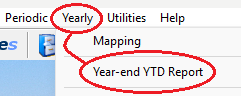
Step 7: Yearly menu: select
This report must be printed before closing the year. Otherwise, the YTD amounts won’t be available.
- Go to
- Enter the required year as
25(for 2025) - Print a hard copy of this report for your records
Step 8: Close Year
From the Easypay menu, select . Read any messages and instructions that are displayed. The Close Year routine includes a checklist. Please be sure that you have completed each item on the checklist before you check it off. When your checklist is complete and you are ready to close the year, click OK.
Do not run this step more than once per company. If you encounter a problem during this step then stop, do not back up again, and call Easypay support for assistance.
Once the year-end is complete, you may start running your payrolls for 2026. The T4, T4A, and RL-1 information has been saved. This information will be available during all of the upcoming year, so there is no rush to print the T4 slips – there is plenty of time.
TD1 Update Utility – only applies if not running Close Year step
The Close Year step will automatically multiply each employee’s Federal and Provincial TD1 amounts by the index factor specified for 2026. This means the TD1 amounts should be correct for 2026 and do not need to be manually edited.
If you are not running a Close Year step for a company, you may wish to run the TD1 Update step. Note: this only applies to new Easypay Payroll customers who set up employees at the end of 2025 with the TD1 amounts for 2025, but have not run any payrolls in Easypay and, therefore, will not be doing the Close Year step. The TD1 Update utility is located in . This step will index TD1 amounts to adjust them to the proper values for 2026.
Electronic Filing of T4, T4A and RL-1 Slips
For instructions on how to file T4, T4A or RL-1 returns electronically using the Internet, start up your Easypay Payroll software and select: and click on the appropriate topic.
If you need more information about filing returns by Internet, please look in our Links page for links to the CRA.
Easystub online T4 slips
Easystub is an optional feature that allows employees to view and download their pay stubs and T4 slips using the Internet.
If you currently upload your pay stubs to Easystub, the ability to upload T4s is automatically available to you.
To upload T4s to Easystub, use the option, which is made up of two menu options: Create File and Upload. Once satisfied with the contents of your T4s, create the file and then upload it. The employees will have access to their T4s via the same Easystub login and location they use to access their pay stubs.
For details and instructions, please visit the Easystub page.
Internet Access and Messages from Easypay
Your Easypay software automatically checks the easypay.ca website for important messages or software updates. If there is any important news, a message should pop up when you open your Easypay software. This assumes that the computer you use to run Easypay has Internet access and there are no firewall or other issues. Just to be safe, it’s always a good idea to periodically visit the News and Downloads pages at easypay.ca to check for news and updates.
