Moving Easypay and your Data
Internet Firewalls
Guides
Internet Firewalls
Internet firewalls / filters
If your computer is connected to the Internet, Easypay periodically checks the Easypay website for software updates and/or news. Easypay does this by accessing the following URL: www.easypay.ca/check_for_updates/epwebv2.txt
If you need to turn this option off in Easypay, go to: .
Year-end Process
January 2026 Update Instructions
The January 2026 update instructions are also posted on the January update download page.
It is extremely important to follow the steps in the instructions.
- Web page: January 2026 Update Instructions
- PDF version: January 2026 Update Instructions (PDF)
Basic personal amounts, EI, CPP, QPP, QPIP values
In Easypay, the federal and provincial basic personal amounts (or "net claim amounts") for each employee are automatically updated when the Close Year step is run. Please do not be alarmed if you notice that these amounts remain unchanged immediately after installing the Easypay update - this is normal. Please carefully follow the update instructions to ensure that the update installation and year-end process go smoothly.
For your reference, here is a document that lists the basic personal amounts, EI, CPP and QPP values as of January 1, 2026:
Cheque date determines first pay period of new year
The first pay period of the new year is determined by the cheque date or payment date of the direct deposit file. For example, if the cheque date has the year 2026, then the pay period of the cheque belongs in 2026, regardless of the number of days worked in 2025 that are included in the cheque amount.
Things to remember at year-end
A few important points regarding the year-end process:
- It is extremely important to follow the steps in the January 2026 Update Instructions.
- Before installing the January 2026 update, complete and close the last pay period in 2025, but do not run the 'Close Year' step yet. If you use the Quick Cheque feature, please make sure that it has been closed as well.
- Please note: the pay period will NOT be reset to 01 immediately after installing the January update. After you install the January update, there are a few more steps to complete before running the 'Close Year' step. After those steps have been completed, and after the 'Close Year' step is run, the pay period will be reset to 01.
Year-end FAQ
Why is the pay period not reset to '01' immediately after installing the January update?
After you install the January update, there are a few more steps to complete before running the 'Close Year' step. After those steps have been completed, and after the 'Close Year' step is run, the pay period will be reset to 01. It is extremely important to follow the steps in the January 2026 Update Instructions.
Why do the T4 amounts seem to be from the previous taxation year?
If your T4 amounts appear to be from the previous year, then the payroll year has not been closed correctly.
- If you have not run any 2026 payrolls, then you may close the year now.
- If you have processed 2026 payrolls, you must call the Easypay Support for assistance: (905) 825-8020.
Why doesn't T4 box 14 equal YTD Gross?
T4 box 14 does not necessarily equal an employee's YTD Gross amount. T4 box 14 is equal to YTD Gross + Taxable Benefits.
Easypay automatically maps all taxable earnings and benefits to T4 box 14. Therefore, do not use the function to map taxable earnings or benefits to box 14 - otherwise, you will double those amounts in box 14.
Why isn't the Business Number printing on all T4 slips?
If you file your T4 slips on paper, the CRA guidelines are as follows:
- Complete one copy of the T4 for each employee to send with your T4 Summary form. Enter the information for two different employees on one sheet. You can keep copies of the slips and summary for your files.
- Complete two copies to give to each employee by the last day of February. Complete the two T4 slips that you have to give to each employee on one sheet. For security purposes, do not enter your Business Number (box 54) on these copies.
Source: Guide RC4120 - Filing the T4 Slip and Summary Form.
T4, T4A slips
See Also:
Online T4 slips using Easystub
As an alternative to printing and distributing pay stubs and T4 slips, Easystub is an optional feature that allows you to post your employees' pay stubs and T4s online.
For more information about Easystub, please visit the Easystub page.
For help with Easystub T4 slips, please visit this page: A Quick Guide to Easystub T4 Slips.
Print T4 slips on plain paper using Easypay
Easypay allows you to print T4 / T4A slips and summaries on plain paper. This saves you the trouble of ordering forms from the CRA and then trying to line them up for printing.
When you are ready to print, just select the Blank paper... exact copy option in the Easypay T4 and T4A print windows. We suggest printing a test slip before printing all of the slips. The top and left margins can be adjusted by clicking the Setup button at the bottom of the dialog window.
PDF versions of slips or forms
If you use the plain paper option for printing T4 slips, as described above, you won't need to use the T4 PDF slip that is available on the CRA website. However, if you decide to print the T4 PDF slip, be sure to set the Page Scaling to None in the printer dialog window. Otherwise, you may experience alignment issues if you attempt to print employee information on the slip.
How to order tax forms
- CRA tax forms: canada.ca/en/revenue-agency/services/forms-publications.html
- Call the CRA: 1-800-959-5525
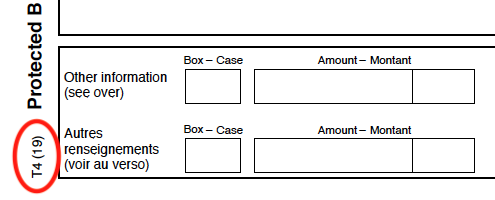
Pre-printed T4 slips: Check the version number of the T4
If you are using pre-printed T4 slips that you received from the CRA, please check the version number of the slips and then select the corresponding T4 printing option in Easypay.
Look at the bottom left corner of the T4 slips to determine which version you received:
T4 / T4A XML files
Mandatory electronic filing
As of January 2024, if you file more than 5 information returns (slips) for a calendar year, you are required to file electronically. Easypay allows you to create an XML file containing T4 returns that can be submitted to the CRA using their Internet file transfer (XML) website.
Do not submit paper T4/T4A summary form or slips if submitting an XML file
When submitting your T4/T4A information returns to the CRA using an XML file, do not send any paper copies of your summary form or slips. Only attach paper copies of any slips that are not included in the XML file submission.
How to create an XML T4 / T4A file
Instructions on how to create an XML file are available in the Easypay online help:
- From Easypay's main menu, select
Filing T4 slips by Internet
The CRA's T4 Internet file transfer (XML) service allows you to submit an XML T4 file via the Internet. There is a link to the CRA Internet file transfer (XML) website on our Links page.
For help on filing by Internet, please refer to Easypay's online help:
- From Easypay's main menu, select
Quebec RL-1 slips and XML files
How to create a RL-1 XML file
For details on how to create a RL-1 XML file using Easypay, from the Easypay menu select: Help > Frequently Asked Questions > Year-end > T4, T4A, RL-1
RL-1 XML file - Certification number
The certification number currently assigned to Easypay is displayed in .
RL-1 XML file - Transmitter number
You must use the transmitter number assigned to you by Revenu Québec when creating your XML file. If you do not have a transmitter number, you can request one by submitting a Transmitter Registration Form (ED-430-V).
RL-1 - Sequential numbers
The RL-1 sequential numbers are printed in the box in the top right corner of the RL-1 slip.
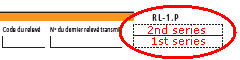
There are TWO different types of RL-1 sequential numbers:
- 1st Series sequential numbers are printed in the LOWER half of the box in the top right corner of the slip:
- If you are using PRE-PRINTED RL-1 slips, you do not need 1st series sequential numbers because numbers are pre-printed on the slips.
- If you are printing computer-generated RL-1 slips on PLAIN PAPER, instructions for determining the starting number are displayed when you click Help beside the text entry box for the 1st series RL-1 sequential numbers. You DO NOT need to contact Revenu Québec to obtain the 1st series sequential numbers.
- Easypay will print these numbers on the RL-1 slips when printing computer-generated slips on plain paper.
- 2nd Series sequential numbers are printed in the UPPER half of the box in the top right corner of the slip:
- If you are submitting an RL-1 XML file, you must obtain this series of numbers from the Division de l'acquisition des données électroniques at Revenu Québec (Telephone: 418 659-1020 or 1 866 814-8392 (toll-free)).
- Easypay will print these numbers on the RL-1 slips when printing on either pre-printed slips or computer-generated slips on plain paper.
Do not submit RL-1 copy 1 if filing an XML file
If you are filing RL-1 slips using an XML file, do not submit copy 1 of the RL-1 slips.
RL-1 Summary Form RLZ-1.S-V must be submitted
- Regardless of the method you use to file RL-1 slips, you must complete form RLZ-1.S-V Summary of Source Deductions and Employer Contributions and file it with Revenu Québec
- The summary is available on Revenu Québec's website. The summary may be completed and transmitted using Revenu Québec's online services
- See the link to Revenu Quebec's Filing the RL-1 Summary on our Links page
Miscellaneous
Antivirus Troubleshooting
Some customers have reported that their antivirus software blocked them from using Easypay and may delete the Easypay desktop icon. If you experience this problem, please see:
Quebec employers: How to handle CSST
CSST can now be set up as a benefit (we know, it's not really a benefit) and reported on your Remittance report. In Easypay, please select The same instructions apply for setting up CSST. If the first four letters of the benefit name are "CSST", it will not print on an employee's pay advice. Calculation Code "P" is non-taxable (no effect on the employee) and is defined as a percentage of (Gross Pay + Taxable Benefits).
Windows 7 font size too large? A possible solution...
There is a rare issue with Windows 7 that sometimes causes the font size to be displayed larger than it should be. This causes the text in check boxes, option buttons, etc., to be distorted and cut off.
The problem might be that the DPI settings for some older fonts might be set to 125% instead of 100%, even if the DPI for the system is set to 100%.
You can follow the steps below to try to fix this issue. This solution involves downloading and using a ".REG" file which will automatically edit the Windows registry to set the DPI for these older fonts to 100%.
Warning! This solution involves editing the Windows registry. Please use at your own risk.
Steps to fix the problem:
- To download the file, right-click this link win7fontfix.rgg (4 kb) and select Save target as or Save link as.
- Open the folder into which you downloaded the file and rename the file extension to
.regso that file name iswin7fontfix.reg. - Run the file by double clicking it. You'll get a few warning messages asking you if you really want to run the file and edit the registry.
- Restart your computer to apply the changes.
