How to Move Easypay and your Company Data to a New Computer
Steps 1 and 2: Install Easypay Payroll on the new computer
- Please contact Easypay Support and let us know that you'd like to move Easypay and your data to a new computer. We will provide you with a link to the download page for the complete version of Easypay Payroll software.
- Once you have received the link to the download page, follow the instructions on that page to install the complete version of Easypay Payroll on your new computer.
Step 3: Create a backup of your company data
- On the OLD computer:
- Plug in a USB flash drive or other removable media.
- From the Easypay main menu, select
- Click the button beside the Backup To field and select the drive that represents the USB flash drive, for example:
D:
You must back up to the root of the flash drive, so make sure that the Backup To field contains only a letter plus a colon, for example:D: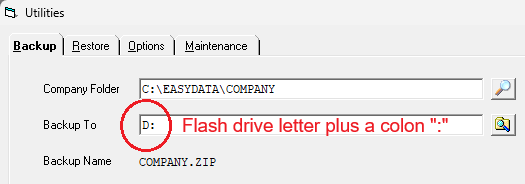
- Click OK.
A message will pop up that says Proceed with backup? and displays the Source and Destination paths.
Confirm that the Destination path is the flash drive plus the name of the ZIP file, for example:D:\COMPANY.ZIP
Select Yes to start the backup process. - You will use this backup to restore the company data onto the new computer later on in Step 8.
Steps 4 to 9: Install your company data on the new computer:
- On the new computer, start up Easypay.
- In the Company Folders window:
- Click the New button to add a new company.
- Enter the same Company ID Name that is used on your old computer.
- Enter the Folder Name(s).
The drive letter can be different than the one used on the old computer, but the Folder Name(s) must be identical.
For example:
On the old computer:C:\EASYDATA\COMPANY
On the new computer:C:\EASYDATA\COMPANY - Click OK to add the company to the Company Folders list.
- In the Company Folders window, select the new company that you just added and click OK.
You should see a message that asks: Is this a new company?
Click Yes. - The Edit Company Profile window should now be displayed.
This window will be blank because Easypay assumes that you want to start entering your company information.
Do not type anything. Click Cancel to escape to the main menu. - Restore your company data onto the new computer:
- On the new computer, plug in the USB flash drive that contains the most recent backup ZIP file of your company’s Easypay data (see Step 3).
- From the Easypay main menu, select
- Click the button beside the Restore From field and select the drive that represents the USB flash drive, for example:
D:
You must restore from the root of the flash drive, so make sure that the Restore From field contains only a letter plus a colon, for example:D: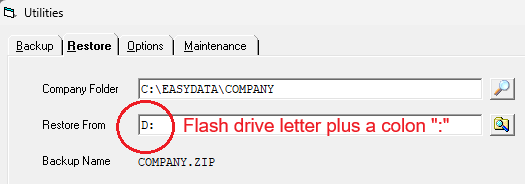
- Click OK.
A message will pop up that says: Proceed with restore?
Select Yes to start the restore process. - After the data is restored onto the new computer, you will have the same data on the old and new computers.
From this point onwards, only use that company's data on the new computer. Do not use the old computer for that company.
- In each company data folder on the old computer, there is a subfolder named
\archive.
For example:C:\EASYDATA\COMPANY\archive- We strongly recommend that you copy the
\archivesubfolder and its contents into the matching company folder on the new computer. - The
\archivesubfolder contains auto-backup files that were created by Easypay. - These files could be very important if you ever need to restore your data.
- We strongly recommend that you copy the
Repeat steps 3 to 9 for any other companies listed in the Easypay Company Folders window on the old computer that you would like to move to the new computer.
After you have completed the steps above...
- If you use any of the features listed below, please contact Easypay Support so that we can help you restore the associated data files:
- Customized cheques
- Customized statements
- Click-n-Pick reports
- Direct deposit file merge
- T4 / T4A XML file merge
- If you use any of the items in Easypay's menu, you will also need to install the Customizer module on the new computer.
If you need help with any of these steps, please don't hesitate to contact us.
